I Tested 20+ AI Tools for Brand Content Creation — Here’s What’s Worth Using


Creatives, social media creators, and founders are no longer choosing between “design work” and “marketing work.”
They’re doing both because both are required for any business in 2026.
A single brand today might need:
- Product imagery
- Website visuals
- Social content
- Short-form video
- Email graphics
- Packaging concepts
- Copywriting support
AI tools can dramatically speed up these workflows but only if you choose the right tool for the right job. These aren’t meant to replace your own creativity but enhance it.
They’re great for communicating concepts or ideas before they ‘actually exist’.
I tested a total of 20+ AI tools for brand content creation and in this post I’ll be sharing:
- What each major tool is best for (in my personal experience)
- When to use one platform instead of another
- How different tools fit into branding, marketing, and content workflows
- Strengths, tradeoffs, and practical limitations
- When NOT to use these tools
This guide is based on my hands-on experience using each of these tools across my own business and a wide range of client projects.
If you’re searching for:
- Best AI image generator for brand work
- Best AI video editing software
- AI tools for commercial content creation
- Professional AI workflow for marketing
Here’s what I recommend…
- Adobe Firefly
- Adobe Premiere Pro
- Adobe Express
- Midjourney
- ChatGPT
- Vizard AI
- Google Nano Banana Pro
- Canva
- CapCut
These tools can be used by…
- Creatives
- Product-based business owners
- Marketing teams
- Content creators
- Podcasters
- Course creators
- Social-first brands
Essentially any business owner or creative trying to improve their content or better communicate conceptual ideas.
If your work involves creating visuals and content that represent a brand, this guide applies to you.

Basic table overview:
| Tool | Primary Category | Best For | AI Strength | Control Level | Typical Use Case |
| Adobe Firefly | Image + Video generation + editing | Product scenes, image generation, image enhancement | High | High | Brand imagery, concept visuals, backgrounds |
| Midjourney | Image generation | Product scenes | High | Medium | Packaging concepts, lifestyle imagery |
| ChatGPT | Copywriting | Writing Assistance | High | Medium | Captions, blogs, ideation, editing |
| Nano Banana Pro (included in Firefly) | Image generation | Realism | High | Low | Experimental photorealistic images |
| Vizard AI | Video | Short clips & repurposing | Medium | Low | Podcast clips, highlights |
| Adobe Premiere Pro | Video | Advanced video editing, cinematic shots, long format | High | High | Youtube videos, short films, music videos, full length podcasts |
| Adobe Express | Design | Templates, graphics, and re-usable brand kits | Medium | High | Social posts, templates, brand kits, brand graphics |
| Canva | Design | Fast graphics | Medium | Low | Quick posts, flyers, presentations |
| CapCut | Video | Short-form video | Medium | High | Reels, TikToks, Shorts |
Adobe Firefly
Best for: Creatives
Category: Image + video generation + editing
I’ve been using Adobe Firefly consistently inside my branding and content workflows, and it’s the tool that currently feels the most aligned with how creatives actually think.
Most image generators assume you can translate your vision perfectly into text. I’ve found that’s often the hardest part. Sometimes the words don’t match what I’m picturing, and other times I don’t even know how to describe what I’m seeing in my head.
That’s rarely how designers work.
We think in layout.
We think in balance.
We think in reference images, screenshots, mood boards, and visual direction.
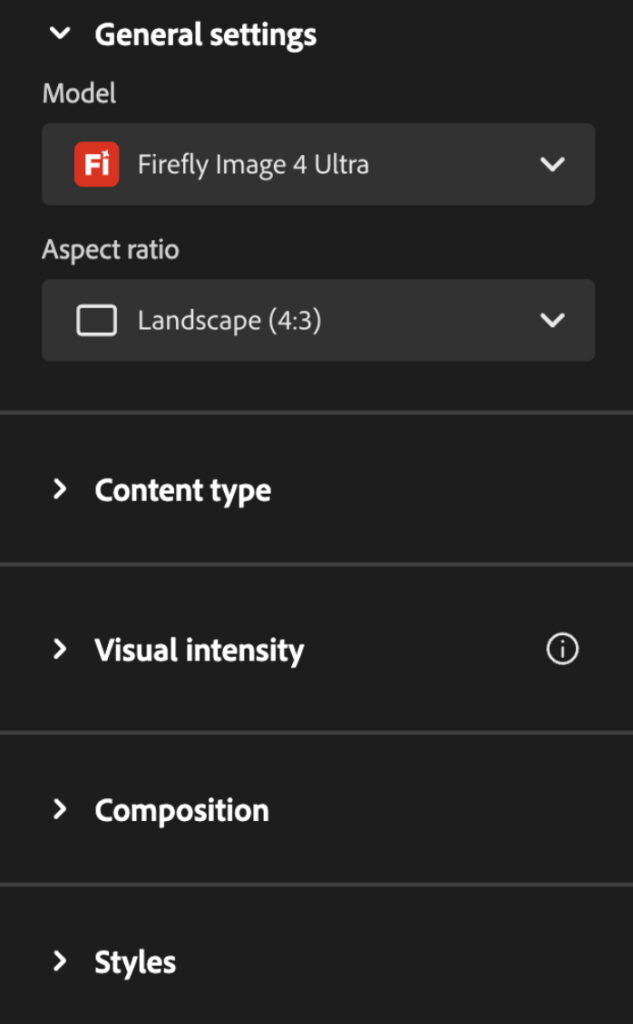
Firefly stands out because it lets you guide the output with:
- Composition references
- Style references
- Artistic Effects
Instead of trying to explain “place the subject slightly off-center with negative space on the left and soft lighting,” I can literally show it. This makes it much easier to achieve what I want. That alone saves a massive amount of trial-and-error.
It’s also very transparent about how many credits are used per generated image or video and how many I currently have, which I really appreciate. I’ve found other platforms are unclear on pricing or credit usage which makes it confusing.
This is an example of an image I generated in Firefly by typing a very simple prompt and leaning on visual image references to communicate my vision.
When I Reach for Firefly
I primarily use Firefly during early visual exploration and marketing asset creation:
- Website hero concept images
- Campaign visuals
- Blog graphics
- Social content backgrounds
- Directional imagery for brand presentations or photoshoots
It’s especially useful when I need something that captures my brand vision or have an image idea for a photoshoot that doesn’t yet exist on Google or Pinterest.
Why Firefly Works Well for Brand-Led Work
Brand work is about consistency. Firefly provides:
- Good overall composition
- Helps convey visual mood
- Options for color direction
- Style continuity
- Commercial-safe positioning
- Licensing clarity
- Suitable for client work
That makes it easier to generate images that can actually live inside a brand system instead of feeling random.
Another big plus: Firefly has partnered with other AI models (including Google’s models), which means I can access multiple technologies from one place. If I want to experiment with different generation approaches, I don’t have to jump between five separate platforms. So, if one model isn’t generating the visuals I want, I can just try another without leaving the platform completely.
I also like that Adobe Firefly seamlessly integrates with other Adobe platforms I’m already actively using like Adobe Illustrator or Adobe Photoshop. It just makes my workflow easier and faster.
Where Firefly Is Not the Right Tool
- Final logo design
- Vector illustration
- High-end photo retouching
Firefly doesn’t replace Photoshop, Illustrator, or Lightroom.
It speeds up ideation and asset creation before things move into traditional design tools.
Bottom Line
For brand-focused image generation and commercial-safe creative work, Firefly is the most reliable option I’ve tested.
Midjourney
Best for: Product scenes and conceptual imagery
Category: Image generation
Midjourney shines when you want visually interesting, stylized, or atmospheric scenes.
Where I’ve found Midjourney especially useful is product-based brands. If you sell a physical product, Midjourney can be a great way to visualize:
- Packaging concepts
- Lifestyle scenes
- Product-in-environment shots
- Label design ideas
Before anything actually exists.
This is an example of a coffee package design with three variations I created using Midjourney. The pattern and label design were created by me in vector software but I used Midjourney to generate realistic 3d mockups with scenes that matched the brand.
It does a great job of matching the generated graphic to the photo reference, which is something many other tools still struggle with.

How I Use Midjourney
I treat Midjourney as a concept generator.
I’ll explore:
- Mood
- Lighting style
- Environment
- Overall vibe
Then I take the strongest results and create them in real life. I don’t rely on Midjourney for final, production-ready visuals but it can be a great way to show ‘what’s possible’ before any products are actually on the shelf. This can also be helpful when communicating with packaging suppliers or printers who want to understand your vision better.
It’s also great at capturing very specific styles of lighting.
Where Midjourney Starts to Struggle
- Precise layout control
- Editing existing images
- Matching a strict brand system
Midjourney is more interpretive than controlled. That can be great for creativity, but it’s not always ideal for structured brand work. If you find one prompt that works you basically have to use the same prompt over and over to generate matching imagery.
Bottom Line
Midjourney is excellent for early-stage visualization and product scene ideation. It’s not a replacement for a designer. It’s a creative spark and vision tool.
ChatGPT
Best for: Writing assistance and light copy editing
Category: Copywriting
OpenAI ChatGPT is something I use almost daily but specifically for supporting writing related tasks.
I’ve found it extremely helpful for:
- Light editing of my own copy
- Rewording sentences
- Clarifying ideas
- Answering questions
- Brainstorming angles
Where I don’t recommend using ChatGPT is image generation or idea creation. This is where a lot of people go wrong…they skip their own ideation and let ChatGPT do the thinking for them. That’s usually when the work starts to sound generic or robotic. ChatGPT works best as a refinement tool for ideas you’ve already developed, not as the source of them.
When I’ve tried generating visuals on chat GPT it tends to have:
- Obvious visual issues
- Strange proportions
- Unrealistic details
It’s not what ChatGPT is best at. As you can see in the example below, the image is clearly AI-generated. It reflects one of the most unrealistic and common AI visual styles.
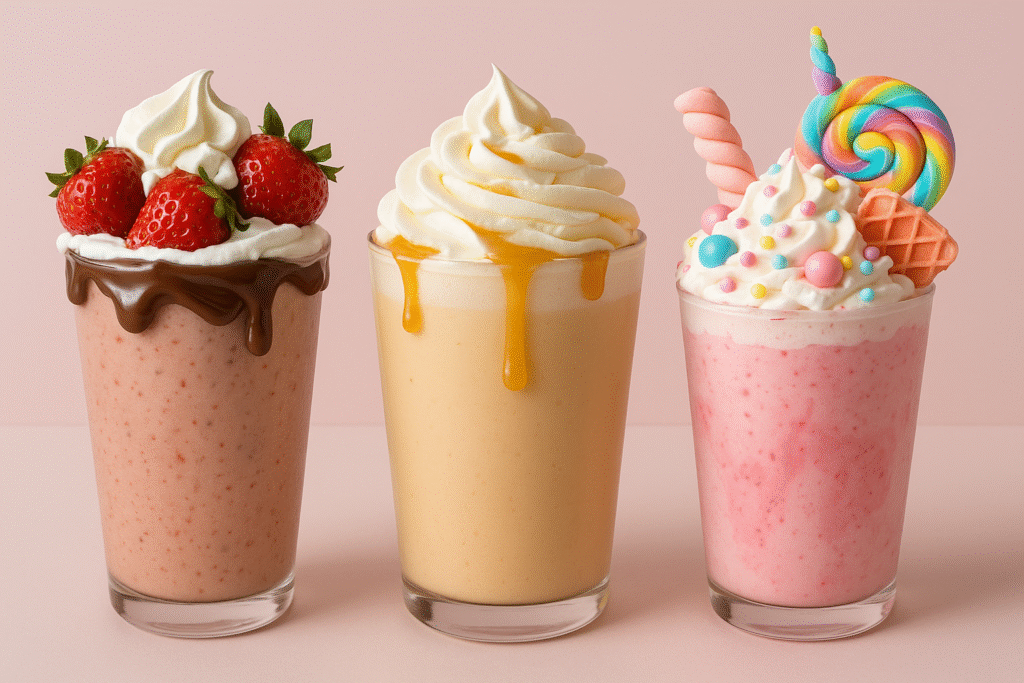
This is one of the biggest mistakes I see business owners making: using ChatGPT as a designer.
They’re having it create illustrations, write daily posts from start to finish, design logos, even build menus and it’s usually obvious to everyone except the person using it.
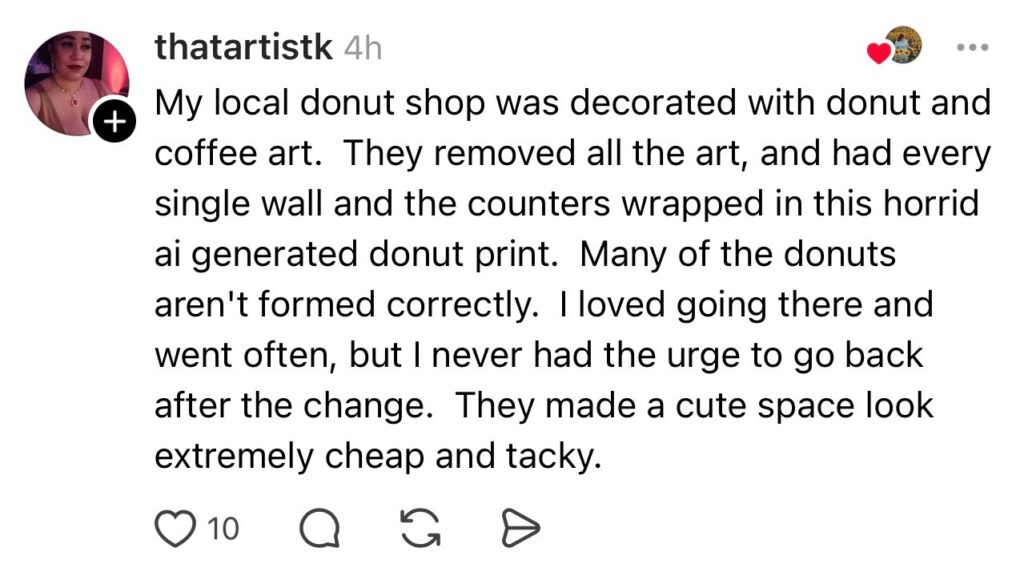
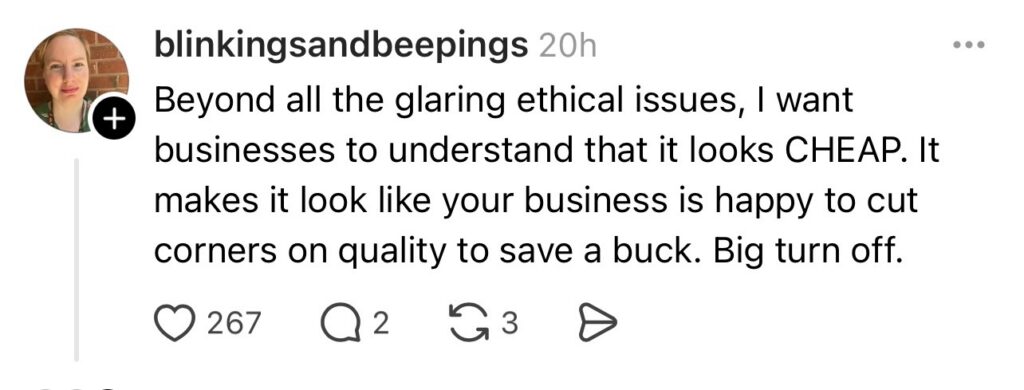
Here’s the thing: a large portion of people can feel when something lacks intention. Some are more vocal about it than others, but the reaction is there.
When AI is used for everything, a brand often starts to feel cheap. It signals corner-cutting, and subconsciously people begin to wonder, “If they’re cutting corners on design, what else are they cutting corners on?” The product? The experience? How they treat their staff?
Those questions aren’t always conscious, but they influence perception. That’s why AI works best as support, not a replacement.
How ChatGPT Fits Into My Workflow
I don’t ask ChatGPT to “write everything for me.”
Instead:
- I write messy first drafts and ask ChatGPT to reword things.
- I ask for refinement, clarity, or tone adjustment.
- I do a final human edit. I NEVER copy and paste.
That combination is where ChatGPT shines.
Bottom Line
Use ChatGPT as a writing assistant, not a visual design tool. It’s not a replacement for your creative team.
Google Nano Banana Pro (included in Adobe Firefly)
Best for: Realistic image generation
Category: Image generation
I tested Google Nano Banana Pro directly through Google, but later realized it’s actually built into Adobe Firefly so if you’re already using Firefly, there’s no need for a separate subscription. This feature just makes Firefly an even easier choice.
The image generation itself can be very impressive. Some outputs are noticeably more realistic than many other generators.
That said, my overall experience was mixed.
What I Liked
- Realistic-looking images
- Strong detail in certain scenes
What Didn’t Work for Me
- Slow generation times
- Confusing interface
- Lack of clarity around pricing
- Not always easy to describe what you’re wanting to generate
I never felt confident about how I was being charged. Because of that uncertainty, I canceled after about 30 days. I would generate multiple images and not find out what it costed me until days later.
I also had trouble getting to the image generator. I found it was stuffed in a confusing interface with a list of other platforms. Even after bookmarking it, I still had trouble finding the right page and locating where my previously generated images were stored.

Bottom Line
Strong underlying technology.
Poor user experience.
It’s best suited for experimentation than daily professional use. If you’re in desperate need of something super realistic for content, it can be helpful but it is very slow and sometimes it takes multiple requests to get the exact image you’re visualizing.
I also found it to be hit-or-miss. Sometimes I could ask it to incorporate a logo I designed and it would work, and other times the result didn’t quite match the reference. I had to pay close attention to the details to ensure it hadn’t oddly adjusted a handle on a mug or slightly alter the logo I provided.
Adobe Premiere Pro
Best for: Professional video editing + long-form content
Category: Video editing + AI-assisted workflow

This is the biggest gap most people miss.
There’s a difference between:
👉 editing content quickly vs
👉 building structured, high-quality brand content
Premiere is built for the second.
Premiere stands apart by taking the familiar features of short-form editors like clip splitting, audio cleanup, and visual enhancements and elevating them within a more advanced, robust editing platform.
- Text-based editing
- Filler word removal
- Timeline-native AI tools
- Advanced color grading
- Layered editing capabilities
- Professional export controls
When I Use Premiere:
- Brand campaigns
- YouTube content
- Long-form education
- Anything client-facing at a high level
Premiere vs CapCut (Important):
CapCut is optimized for speed and short-form content.
Premiere is built for structured brand work, complex timelines, and professional delivery.
👉 If it represents your brand at scale, it belongs in Premiere.
Vizard AI
Best for: Repurposing of short clips and final effects
Category: Video
Vizard AI is designed to automatically cut long-form videos into short-form clips.
I’ve found it works well if you:
- Run a podcast
- Record long talking-head content
- Create educational videos
It’s much less effective for heavily edited YouTube content with motion graphics, b-roll, or layered visuals.
It essentially pulls the strongest moments from your publicly shared long-form content and turns them into bite-sized clips. I did find the short-form editing interface a bit clunky at times and not always intuitive, although the core concept itself is solid.
It’s great for basic clips but if you have a long form clip with lots of overlays or editing, it doesn’t always translate to solid short form video content because the overlays get cut off.
Where Vizard Works Well
- Podcast highlights
- Interview clips
- Simple educational videos
It also includes scheduling, which is genuinely useful if you’re trying to streamline posting. That said, I did find writing captions and adding hashtags for each video to be a bit of a pain.
Where It Falls Short
- Complex editing
- Stylized YouTube videos
- Branded motion graphics
It can also become expensive depending on how often you’re using it. When I first purchased it, I scheduled a batch of videos so it made sense, but over time I’d forget to run new batches after publishing fresh content, and I eventually canceled my subscription.
Bottom Line
Great for quick short form snippets of long talk-based content.
Not built for cinematic editing.
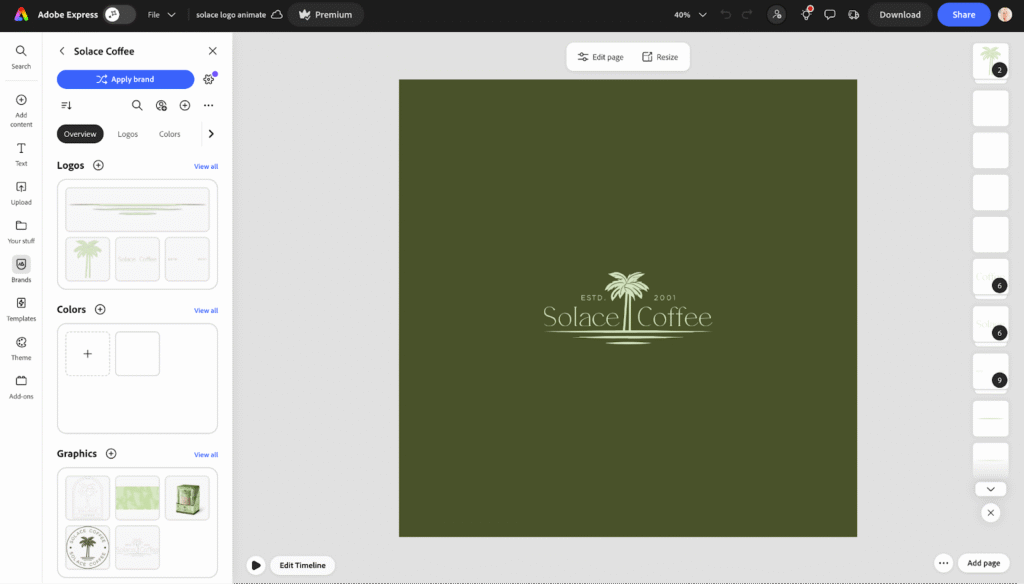
Adobe Express
Best for: Fast branded graphics (inside a real ecosystem)
Category: Design + AI-powered content
This is where most people default to Canva.
But if you’re already using Adobe tools, Express keeps everything cohesive.
Why Express Matters:
- Built-in brand kits + consistency
- AI-powered resizing
- Background removal
- Direct connection to Firefly
- Faster than opening full design software
When I Use It:
- Quick social graphics
- Branded templates
- Lightweight content creation
👉 The biggest advantage isn’t just speed…it’s keeping everything inside one system. This makes it seamless to transfer designs, make quick changes, and adjust marketing materials as your brand is expanding.
Most designers are already using Adobe tools to generate vectors and they integrate directly into Adobe Express.
Canva
Best for: Simple templates and quick execution
Category: Design
Canva is useful but it’s often over-relied on and businesses end up looking exactly alike.
Where It Works:
- Simple graphics
- Templates
- Presentations
Where It Breaks:
- Brand systems
- Advanced design
- High-end visuals
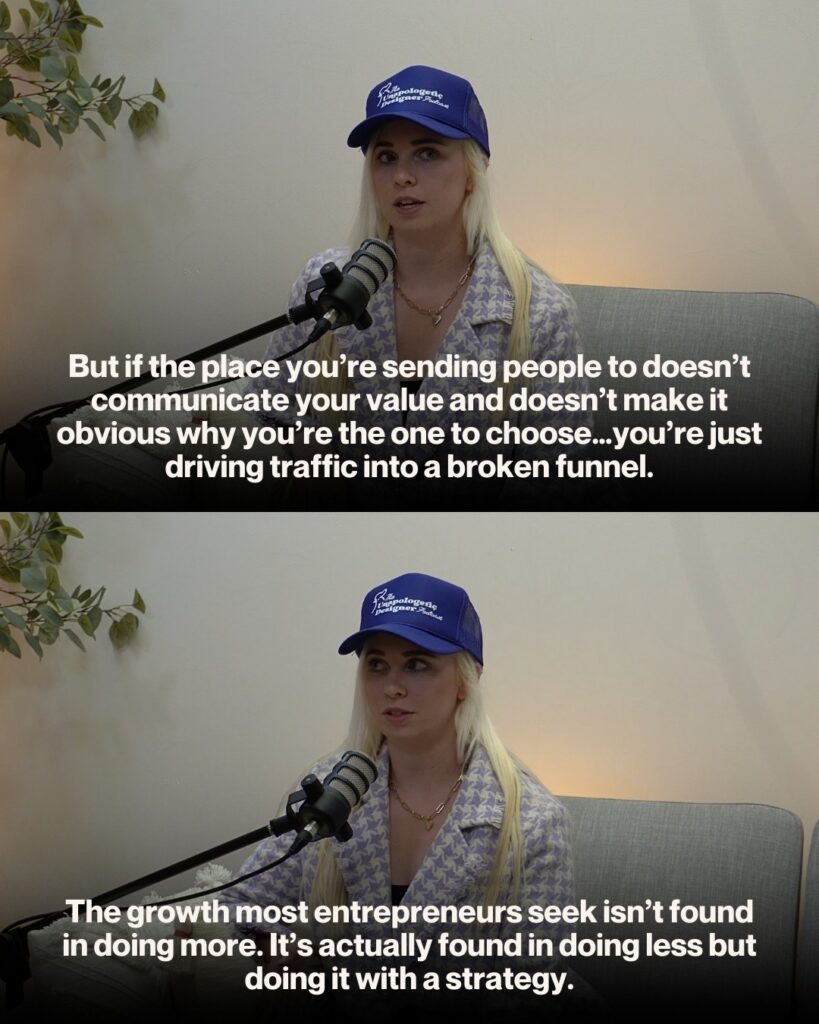
👉 If you’re already in the Adobe ecosystem, Express is the more cohesive option. Below is an example of a reusable template that could be easily added to something like Adobe Express:
CapCut
Best for: Fast, creator-focused, social-native content
Category: Video

CapCut is one of the tools I’ve used the most for short-form video content.
If you’re creating:
- Short Reels
- TikToks
- YouTube Shorts
CapCut is extremely practical.
When I Use CapCut
I reach for CapCut when:
- Editing quick talking-head videos
- Adding captions
- Trimming clips
- Layering simple b-roll
- Applying light effects
- Incorporating sound effects
It’s fast and designed for social media. I also love the auto save feature. Many of the platforms mentioned above include some type of media library, which makes it easy to step away from a project and come back to it later. It’s another reason these tools are so practical…if you forget to save, your work usually isn’t lost. Even images you generated in the past are stored inside your library on tools like Adobe Firefly and Midjourney so when you lose them in the sea of downloads, you can just login and download them again.
CapCut’s AI Features in Practice
CapCut includes AI tools like:
- Auto captions
- Background removal
- Text-to-speech
- Template-based editing
- Audio enhancement
These save time, especially for creators producing a high volume of content. Some of it’s AI-powered tools can truly enhance the video experience like creating better audio or clearer video. Its sound effects are one of its most useful features and really set it apart from other tools, in my opinion.
Where CapCut Works Well
- Short-form video
- Fast editing
- Mobile or desktop workflows
- Creator-style content
Where CapCut Is Not Ideal
- Long-form cinematic editing
- Complex timelines
- Advanced color grading
- Film-level production
For those, traditional editors still make more sense.
How CapCut Fits Into a Brand Workflow
A common setup:
- Record video
- Edit in CapCut
- Export vertical clips
- Pair with Firefly-generated images for covers
CapCut handles motion. Firefly handles visuals. ChatGPT handles captions.
Bottom Line
CapCut is a strong short-form editing tool for creators and brands. It’s optimized for speed, not cinema.
At the end of the day, the “best” AI tool isn’t universal.
It depends on what you’re creating, how much control you need, and whether the output is meant to represent a brand or simply move fast.
AI can speed up execution.
It can’t (and shouldn’t) replace:
- Brand strategy
- Creative direction
- Taste
- Real human touch
The strongest results still come from pairing thoughtful human decisions with the right tools.
If you’re a creative or founder-led business, start with platforms that give you control, references, and consistency then layer in specialized tools where they make sense.
That approach will take you much further than chasing every AI tool that exists.
In my experience, most brands only need two to three AI tools to meaningfully improve their workflow and creative output. Sticking to a small set of tools that actually make sense for your brand helps you master them, control costs, and avoid constantly chasing new platforms. The encouraging part is that these tools are evolving quickly, features are being added and improved all the time so even if something doesn’t quite meet your needs today, it very likely will in the coming months.
My Top 4 Picks:
The biggest advantage isn’t any single AI feature. It’s keeping generation, editing, and execution inside one integrated ecosystem.
Integration is Adobe’s best feature.
| Category | Best Tool | Reasoning |
| Brand image generation | Adobe Firefly | Control + commercial-safe |
| Professional video editing | Premiere Pro | Timeline-native AI + advanced control |
| Fast branded graphics | Adobe Express | Integrated + lightweight |
| Short-form creator edits | CapCut | Speed |
(This post was created in partnership with Adobe)